keskiviikko 18. heinäkuuta 2018

How to Remove Icons from iPhone X/8/7/6/6s/5/4?


Delete Apple's Built-in Apps

On iOS 10 and later versions, you can delete built-in apps of Apple from your iDevice. Although the built-in apps do not take much space, you can remove them to get rid of their icons from your iDevice's home screen.
Note
Keep in mind that removing such apps will not delete their data. It also doesn't free up storage space on your iDevice.
Step 1. On the home screen of your iDevice, touch the icon of the app that you wish to remove and hold it until the icon jiggles. Press the icon lightly, otherwise it won't jiggle.
Step 2. You will see an option to remove the app. Tap the Remove option to proceed. On newer iOS versions, you will need to tap the 'X'.
delete-stock-apps-in-ios-10
Step 3. Now press the Home button of your iDevice to finish.
There are certain built-in apps from Apple that you can remove via this method. Not all built-in apps can be removed. Following are the built-in apps you can remove:
  • Weather
  • Watch app
  • Voice Memos
  • Videos or TV
  • Tips
  • Stocks
  • Reminders
  • Podcasts
  • Notes
  • News
  • Music
  • Maps
  • Mail
  • iTunes Store
  • iCloud Drive
  • iBooks
  • Home
  • Find My Friends
  • FaceTime
  • Contacts
  • Compass
  • Calendar
  • Calculator

If You Simply Want to Hide Icons

If you only need to hide icons but keep the apps installed on your iPhone, then you will be glad to know that there is a way to do that as well. You can hide the icons by creating a folder on the home screen of your iPhone and keeping the unwanted apps on the second page of the folder. Follow these instructions:
Step 1. Create a folder on the second or third Home screen of your iPhone. To create a folder, tap an app on the Home screen and hold it until its icon wiggles. Then move that app towards another app that you want to place in a folder. When both apps overlap, the view will be zoomed in and a folder will be created.
hide-apps-using-folder
Step 2. If you truly want to hide the app icon, then it is recommended that you place at least eight to ten apps in your folder that you are fine with others seeing. Then move the app that you wish to hide to the second page of the folder.
It is obvious that this method does not completely hide the apps, however it does make it difficult to accidentally come across them.If you ever lost or accidentally deleted data from your iOS device, you can use the professional Gihosoft iPhone Data Recovery software to retrieve important data from iPhone, iPad or iPod Touch even without backup.
Jihosoft iPhone Backup Extractor Extract and recover all types of data from iPhone backup files, such as camera roll photos, videos, SMS, contacts, reminders, WhatsApp, and etc.

If I Reset My iPhone What Will I Lose?


Part 1. If I Reset My iPhone What Will I Lose?

After encountering a major setback in your device and the only available solution is to reset, then you need to know that you will lose some data and files (if not all). However, different reset leads to different results.

There are different kinds of reset method, these methods determine the outcome of your device and answer the question: “If I reset my iPhone, will I lose everything?”. These methods include:

A Reset Through Settings on iPhone

This is a conventional method and it is very easy. It involves only your device and tapping a few buttons in order to restore the phone. In this method, there are 2 approaches to this;


If you reset all settings, it will only be temporary and not all files or data will be lost. In fact, some junk and temp files i.e. it keeps your apps and data but will reset all personal preferences and network settings.


If you erase all content and settings, it will delete all data on your iPhone, including songs, videos, images, etc. It is somewhat similar restoring back to factory settings.

B Reset Through iCloud and iTunes

One of the available methods Apple has put in place for iPhone users to reset their phones. It involves making a connection with a PC and logging into iCloud or launching iTunes respectively. This method is however complicated but resets through iTunes and iCloud will make you lose all your files and data; more like restoring back to factory settings. If you need to get back your data you may need to get help from some professional recovery tool.
Part 2. How to Restore iPhone after Reset via iTunes

When you reset iPhone with any of the method listed above, no doubt, some important files could be deleted or lost and you would want to restore them. In order to do this, you can restore iPhone from an iTunes backup if you have backed up before. Apple set up this method so the maximal use of iTunes can be put into action and one can be able to backup devices in case of future problems.

Step 1: Connect your iPhone to a PC.

Step 2: Make a quick launch of iTunes and go to File menu, select “Devices”.

Step 3: Choose “Restore Backup”.


Step 4: Pick a recent backup on the basis of size and date, and click on “Restore”.


After all these steps, you now have your iPhone restored via iTunes, and this is also very useful also after reset.If you ever lost or accidentally deleted data from your iOS device, you can use the professional Gihosoft iPhone Data Recovery software to retrieve important data from iPhone, iPad or iPod Touch even without backup.

Jihosoft iPhone Backup Extractor Extract and recover all types of data from iPhone backup files, such as camera roll photos, videos, SMS, contacts, reminders, WhatsApp, and etc.


keskiviikko 11. heinäkuuta 2018

How to fix Error: amfid patch on Electra1131 jailbreak 2018 Guide


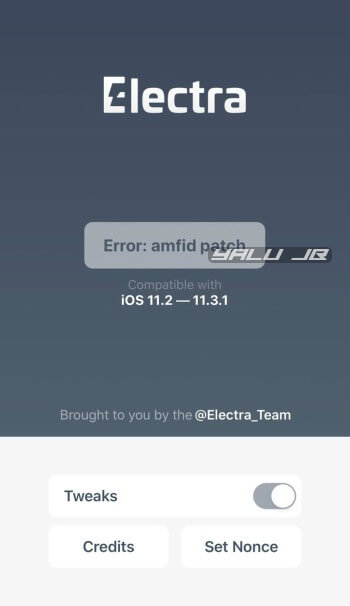
Many users have complained about the “Error: amfid patch” message after running Electra1131. Although the developers haven’t released a fix yet, here are a few methods that will help you increase Electra’s success rate.
AMFID patch (codesigning bypass), though not as important as a kernel exploit, is an integral part of a jailbreak.
The “Error: amfid patch” message indicates that Electra1131 is unable to install the patch properly on your device.
error amfid patch iOS 11.3.1
iOS 11.3.1 jailbreak usually throws this message once it gets past the “Please Wait (2/3)” stage.
Table of Contents
  • How to fix Error: amfid patch on Electra1131 jailbreak
    • Method 1
    • Method 2
    • Method 3
    • Method 4

HOW TO FIX ERROR: AMFID PATCH ON ELECTRA1131 JAILBREAK

METHOD 1

Restart your device and keep retrying until the jailbreak finally succeeds. If that doesn’t work, force restart your iPhone or iPad and then launch the app again.
This is the only “real” fix that will help you deal with this issue. Keep trying and eventually, the jailbreak will succeed. Several users had to retry over 200 times to put their device in jailbreak mode.If you accidentally deleted or lost videos on iPhone, first please check on the Recently Deleted folder. Alternatively, you can use the professional tool Gihosoft iPhone Data Recovery to recover deleted iPhone videos from Camera Roll or some apps.

METHOD 2

If you modified your root filesystem with Filza, it will be difficult to get past this screen. Try undoing all the changes made to your filesystem and then run the Electra app again.
If all goes well, it will hopefully succeed.

METHOD 3

Charge your iPhone/iPad and enable Airplane mode before you run the Electra app. Several users have reported success with this approach.

METHOD 4

Unjailbreak your device using the Delectra script. Follow this tutorial if you want to remove Electra1131 from your device.
Here are a few tutorials that will help you fix errors and bugs –
  • error: rootfs remount fix
  • error: exploit fix
  • Electra1131 jailbreak not working
Check out our Facebook and Twitter pages for more jailbreaking tips and tricks.

tiistai 10. heinäkuuta 2018

4 iPhone X Tips and Tricks for Shooting Soccer on Your Phone World Cup


Every four years, people from across the globe crowd into bars or dust off their soccer cleats to hit the pitch in celebration of the World Cup. This worldwide sporting event creates memories that last a lifetime and Apple seizing on the moment by highlighting iPhone X features that can help you capture better images of bar hopping and bicycle kicks alike.

To kick off the opening match of the Russia-hosted 2018 World Cup, Apple published a crash-course on how show off your tekkers in style. Here are four ways to take some high-quality action shots of you and your friends dribbles, headers, and free kicks.
World Cup 2018: Backlight Effect

The few moments right before a soccer match are some of the most exhilarating. The audience packs into the stadium, the atmosphere builds, and the two squads make their way onto the field with cameras capturing their every move.


The iPhone X’s blacklight effect make it easy to shoot an entrance that’s just as epic as the one your favorite players make as they’re walking out of the locker room. Lock your camera’s focus and lower its exposure by swiping down for a darker shot. Kick up some dust for a foggy effect and snap your shot.

Now you and your buddies are looking like a straight up national team.
World Cup 2018: Slow-Mo

It’s undoubtedly hypnotizing to watch a perfectly executed free kick. But don’t leave those slow motion replays up to cable networks. Grab a ball and try to bend one into the upper-right corner while your friend captures it in slow-mo.


Swipe over to the “slow-mo” feature in the camera app and tell your mate to get low and close to where the ball is perched. Next all they have to do is film your shot and adjust where you want the slow motion effect to begin.


Tech Nomad: Air Louisville

Pulling off the perfect kick might take a few tries, but it’s only a matter of time until you hit something Messi-esque.
World Cup 2018: Burst Mode

The perfect bicycle kick is mix of finesse and and pure power, the only bummer is that it’s over in a split second. Don’t miss a frame of this legendary shot on goal with the iPhone X’s burst mode.


Find the right angle to get a shot of your friend and stabilize your phone by putting your elbows down on the ground. When they’re winding up to take kick the incoming pass hold down the center button to capture every frame of the trick shot.

Ronaldo would be proud.
World Cup 2018: Panoramic

A soccer pitch is 100 meters of pure action. Capturing it will take a steady hand, your whole pick-up team, and Apple’s panoramic camera feature.

If you accidentally deleted or lost videos on iPhone, first please check on the Recently Deleted folder. Alternatively, you can use the professional tool Gihosoft iPhone Data Recovery to recover deleted iPhone videos from Camera Roll or some apps.


Swipe to “Pano” mode and tell your squad to strike a pose. Begin slowly drifting your camera to either the left or the right, then hold still in the middle. Have your friends run around you and take another post on the opposite side of the field to create a wide photo that looks like an ongoing match.

Who needs a starting eleven when you’re a pro iPhone photographer?

How to Remove Icons from iPhone X/8/7/6/6s/5/4?

Delete Apple's Built-in Apps On iOS 10 and later versions, you can delete built-in apps of Apple from your iDevice. Although the bui...